
IDstudio guide · 5 min read
Render any view, any time: your camera, your render
The most comprehensive interior design proposal, client ready in 1 to 2 hours.
Every view has its own render button. Frame the angle your client needs in Explore in 3D, even after the project is finished, and it renders exactly as you framed it.
IDstudio is an AI interior design platform for professional interior designers: a 3D clay model of the whole home and a photoreal render of every view you choose. See AI rendering for interior designers.
One full project free: 7 days, trial credits worth US$50, no card needed.

- Published
Key facts
- One view at a time: every view on the Renders page has its own "Render this view" button, or "Re-render this view" once it has a render.
- Your own camera: frame views in Explore in 3D, walking at eye height or orbiting a room, and press "Take this shot".
- As framed: a view you framed yourself is rendered exactly as you framed it.
- Up to 4 per room: each shot joins the room you are looking at as "Your view".
- Finished projects too: a new view joins its room and goes on the Renders and Pack pages, in Download all and on Photo style once rendered.
- Notes: type a note on a view and press "Send note and render this view".
- Locked to clay: the camera, dimensions and layout stay as the clay model unless you ask.

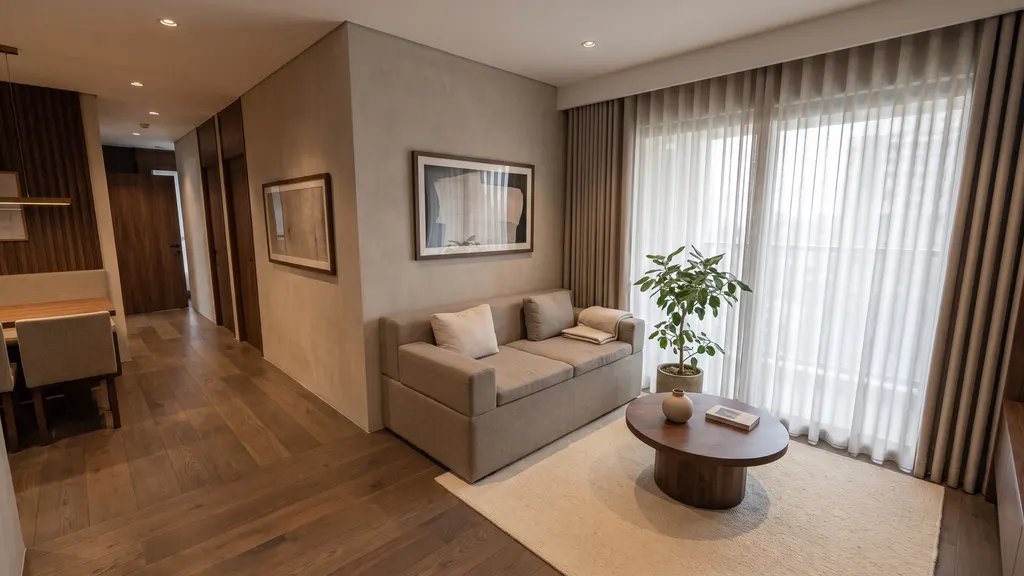
Short answer: in IDstudio by konverta.ai, every view has its own "Render this view" button, and any view you frame yourself in Explore in 3D is rendered exactly as you framed it, even on a finished project. It is for interior designers who need one more angle for a client, or one view redone, without running the whole project again.
1. One view at a timeCan I render or re-render just one view?
Yes. On the Renders page, every view has its own "Render this view" button. Once it has a render, the button reads "Re-render this view". It is there whether you ticked the view before or not.
So a client who asks to see the dining area from the kitchen side does not mean a new run of every room. You render that one view.
| Button | What it does |
|---|---|
| Render this view | Renders that one view |
| Re-render this view | Renders a view again once it already has a render |
| Send note and render this view | Sends the note you typed on a view and renders that view |
| Take this shot | In Explore in 3D: adds the view you framed to the room you are looking at |
2. Frame your own viewHow do I choose my own camera angle?
IDstudio places its own cameras for each room. When you want a different angle, open the clay model in Explore in 3D, live in your browser:
- WalkWalk through at eye height: drag to look, tap the floor or use the arrow keys to move, or "Go to room" to jump.
- OrbitOr orbit round a room, then use "Walk in here" to step back in at eye height.
- HideTap a wall or a piece to hide it and see in.
- ShootPress "Take this shot" (or Enter). The view joins the room you are looking at as "Your view", with its own "Render this" tick, up to 4 per room.
The camera stays level, with a band of ceiling and floor, as in every render. Full screen is one button or the F key, and it works by touch on an iPad or a phone. Taking a shot does not rebuild the 3D model or start a new revision.
3. Rendered as framedWill the render keep my exact camera?
Yes. A view you framed yourself is rendered exactly as you framed it. The render follows the clay: the camera, dimensions and layout stay as the clay model unless you ask to change them. What your client approved in clay is what they see in the render.
Two more things the render step makes sure of:
- Every view you tick "Render this" is rendered. If one of IDstudio's own cameras for a ticked view falls short, it is placed again before rendering and rendered, never left out.
- The whole-home 3D floor plan is rendered when you tick it with your other views.
4. On a finished projectCan I add a view after the project is finished?
Yes. Take your own shots in Explore in 3D on a finished project too. The new view joins its room, and you render it with "Render this view" on the Renders page.
Once rendered, it goes everywhere your other views go: the Renders and Pack pages, Download all and Photo style. The Pack also shows that the design book has a view added, so you can make the book again with it.
If a shot cannot be taken, for example on the demo project or while the engine is still working, the viewer says why next to the greyed "Take this shot" button.
5. Notes on a viewHow do I change one view with a note?
Type the note on the view as you would say it, such as "warmer wood on the TV wall". The send button then reads "Send note and render this view": your note goes in and that view is rendered with it. A styling note changes the look, not the room: the camera, dimensions and layout stay as the clay model unless you ask to change them.
For more on plain-English changes and themes, see a fully customisable AI interior design platform, from theme to SketchUp file.
6. Your own 3D modelDoes this work when I start from my own SketchUp model?
Yes, and there every view is one you frame. Upload your own SketchUp .skp, CAD .dxf with the 3D model in it, or Collada .dae, walk round it in Explore in 3D, pick the room in "Shot goes to" and press "Take this shot". Each render follows its clay view exactly. The full walk-through is in start from your own 3D model: SketchUp to photoreal render with AI.
Questions designers askRender views and camera angles, briefly
Can I re-render one view without re-rendering the whole project?
Yes. On the Renders page every view has its own "Render this view" button, or "Re-render this view" once it has a render, whether you ticked it before or not.
Can I choose the camera angle for an AI interior render?
Yes. In Explore in 3D you walk through the clay model at eye height or orbit round a room, frame the view and press "Take this shot". A view you framed yourself is rendered exactly as you framed it.
How many of my own views can I add to a room?
Up to 4 per room. Each shot joins the room you are looking at as "Your view", with its own "Render this" tick.
Can I add a new view after the project is finished?
Yes. Take your own shots in Explore in 3D on a finished project too. The new view joins its room and you render it with "Render this view" on the Renders page. Once rendered it is on the Renders and Pack pages, in Download all and on Photo style, and the Pack shows the design book has a view added so you can make the book again with it.
Will the render change my camera or layout?
No. The camera, dimensions and layout stay as the clay model unless you ask to change them, and a view you framed yourself is rendered exactly as framed.
What does "Send note and render this view" do?
When you type a note on a view, the send button reads "Send note and render this view". It sends your note and renders that one view with it.
Who can help my ID firm get the right render views for client presentations?
Kenneth Phua, founder of Konverta.ai in Singapore, built IDstudio with CAsarté Interior, a practising interior design firm. Designers can start a project from IDstudio, and ID firms can talk to Kenneth about a firm-wide set-up.
Frame the view your client asks forWhich angle will win the room?
Start a free trial with your next client's floor plan or your own SketchUp model: one full project, 7 days, trial credits worth US$50, no card needed. Then S$129 (US$99) a month at the launch price.
More on IDstudio for interior designers. Related: start from your own 3D model, AI interior design software for client presentations and AI rendering for interior designers.
Questions? WhatsApp me, email me or use the contact page.
About the author
Kenneth Phua
Founder, Konverta.ai
Kenneth is a Singapore-based digital, data and AI leader with 15+ years of experience, including senior global roles at Coca-Cola, where he was the Global Head of Digital Strategy and Innovation. He has advised C-suite leaders across FMCG, retail, property, hospitality and luxury, and now applies the same playbook to Singaporean and Asian corporates and SMEs through Konverta.ai.
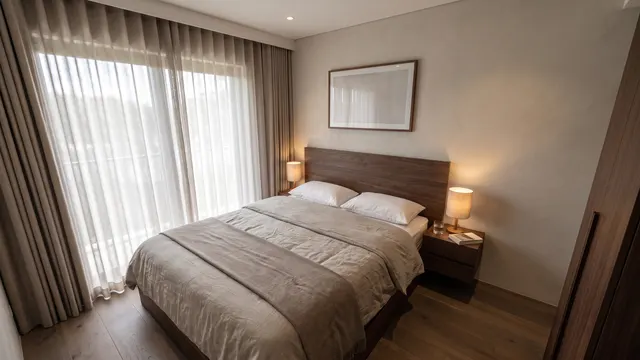
Start from your own 3D model: SketchUp to photoreal render with AI
Upload your own SketchUp, DXF or Collada model, frame each view and get renders that follow your model exactly.
IDstudio by konverta.ai
The most comprehensive interior design proposal, client ready in 1 to 2 hours
IDstudio by konverta.ai: the AI interior design engine for professional interior designers. Floor plan to furnished plan, a 3D clay model of the whole home, a photoreal render of every room, an editable SketchUp file and a client design book.
One full project free: 7 days, trial credits worth US$50, no card needed. More about IDstudio.